

How do you insert icons in your website? Do you store the image files as assets? Do you use an icon font like Font Awesome or Ionicons?
With the first option your application makes a call every time it needs an icon and it may not be easy to customise. Depending on the file type, if you need the same icon on a different colour you may need a new file just for that.
The second option leaves you with a bloated font, filled with unnecessary icons. Font Awesome is one of the most famous icon libraries and has more than 700 icons; out of those how many do you actually use? And what if, for some reason, your design team opts for a different facebook icon? Now you either have to add the new icon as an asset or add a new library of icons.
To simplify the way you use your icons I recommend a tool I use, the IcoMoon App.
What Is the IcoMoon App and How to Use It
IcoMoon is a tool in the form of a web app that allows you to create your own icon font. It has icons from different sources and you can even add your own svgs. IcoMoon also has its own pack of icons, with more than 1600 icons to choose from.
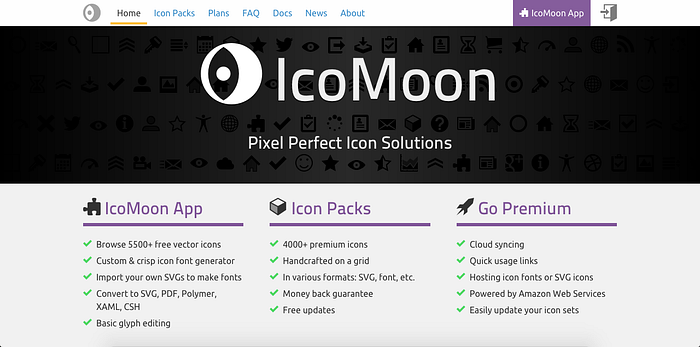
So you might be thinking, ‘How the heck do I use this?’. Well, let’s start by going to icomoon.io and click IcoMoon App on the top right corner.
Let’s start by adding a Facebook icon to our project. Write “facebook” on the search bar.
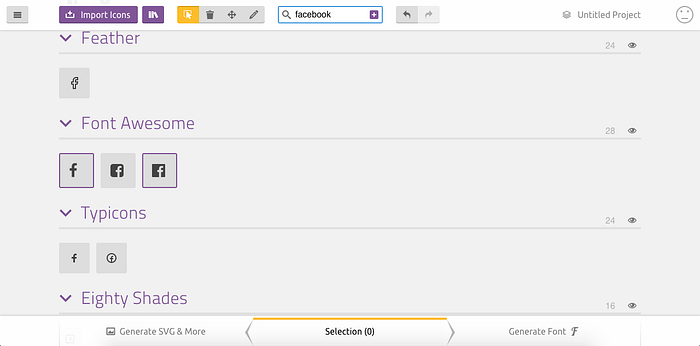
After selecting these two icons from Font Awesome (we can choose which one we want from the two later) just click on the plus button on the right of the search bar.
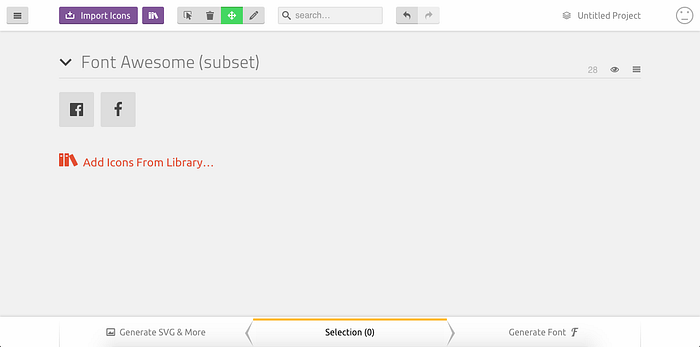
Closing the search (cross on the right of the search bar) we can see the icons we have already added. Let’s add a back and forward arrow, just type “arrow” on the search and pick them from the results.
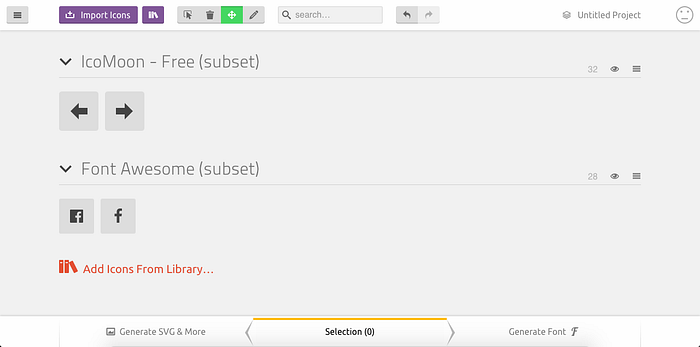
I chose these two from the IcoMoon - Free set. As I said before with the IcoMoon App you can select the icons you need but you can also import and add your own icons as SVGs to the selection. To do this click on the Import Icons button on the top of the page and choose the file. For this example I added an alternative twitter icon.
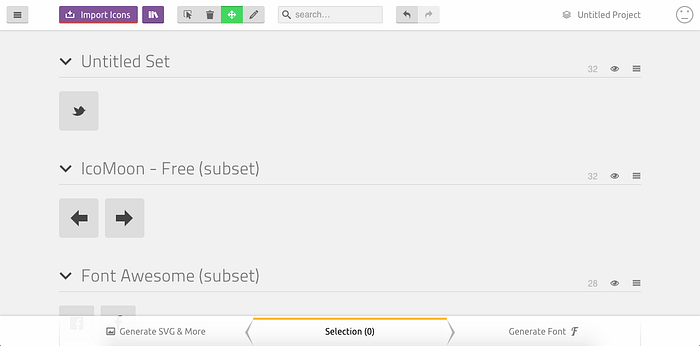
Now to generate our font we just select the icons and click on the Generate Font button on the bottom of the page.
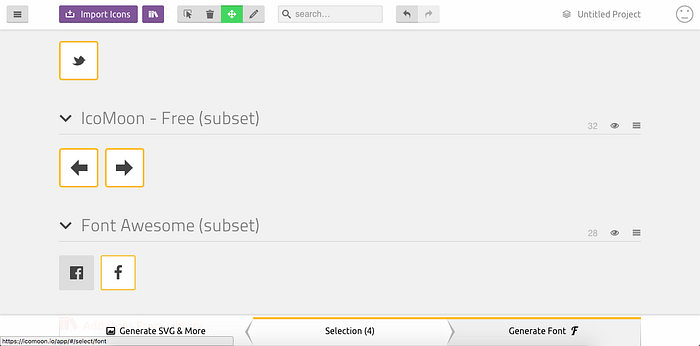
In this page you can change the names and codes of the selected icons.
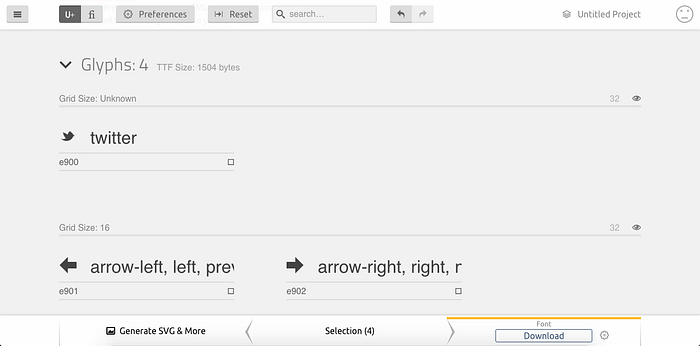
After changing the names and codes to your liking, click on the gear next to the download button. On this popup you can give a name to your font, choose a class prefix and many other options you can explore. If you’re using sass, stylus or less in your project check Generate Sass, Less or Stylus variables and choose the one you need.
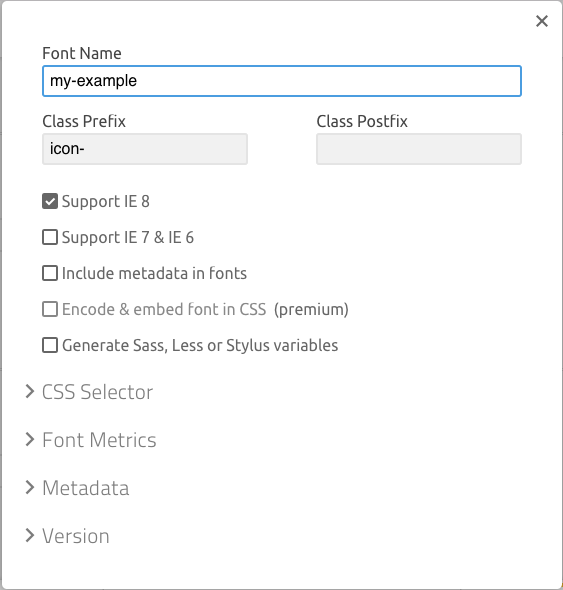
After selecting the desirable options you can close the options popup and finally click download. You will get a zip file, inside you’ll find the following files:

- demo-files and demo.html are just examples of your icons being used
- fonts has the font files you need to copy to the font folder of your project
- selection.json contains your selection of icons that can be imported to the IcoMoon App
- style.css has the style you need to copy to your project
The style file contains the font-face to import the font, the default styling of our icon class and the content for each individual icon. Once you add this code to your project you just need to create an element (typically an <i>) and add .icon-facebook to its classes and you’ll have your Facebook icon.
Saving Your Project
IcoMoon offers a paid service that allows you to save your project on the cloud, among other features. With the free plan your selection will only be in your browser cache. If you don’t want to pay for this premium service you can save the selection.json file in your repository and import it to the IcoMoon App whenever you want to add a new icon to your icons font.
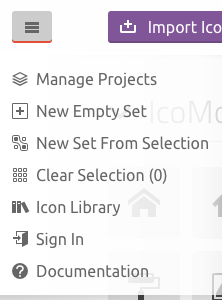
To import the selection.json file go to the Manage Projects page by choosing the option with the same name from the hamburger menu on the top left corner. On the new page click on Import Project and choose the selection.json file.
So that is it! You’re all set to use the IcoMoon App for your websites now, hope that this will help you keep your icons organised, even as your project scales.
Have you used IcoMoon before? Do you know other tools that do the same job? Leave your experiences, feedback or questions on a comment bellow!
I’m a developer at Runtime Revolution, here we focus on delivering the best possible product to our clients while assuring our developers learn the best principles and have the right tools to do it.